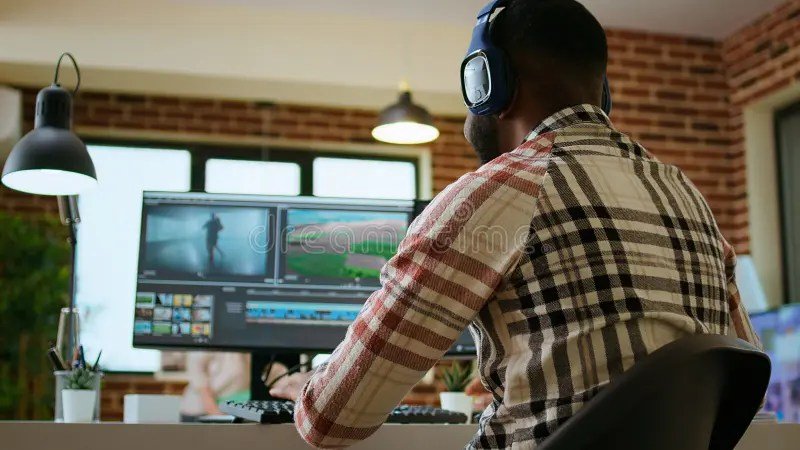
You just nailed that incredible jump, captured that epic ride, or dove into crystal-clear waters, all thanks to your trusty action camera. The raw footage is sitting there, buzzing with potential, but it’s probably a little shaky, the colors might be off, and that 10-second clip needs to become a 60-second masterpiece. This is where the magic of Video Editing & Post-Production for Action Cams comes alive – transforming raw thrills into polished, shareable stories.
It’s more than just cutting clips; it’s about smoothing out the chaos, enhancing the vibrancy, and syncing every beat to your narrative. For action cam footage, this specialized post-production process is non-negotiable. You’re dealing with unique challenges: extreme motion, rapidly changing lighting, and often, gigabytes of high-resolution, high-frame-rate files. The right software and workflow can mean the difference between a forgotten file and a viral hit.
At a Glance: Key Takeaways for Action Cam Editing
- Stabilization is King: Prioritize software with advanced stabilization, ideally using gyro data sync to fix even the shakiest shots.
- High-Res, High-FPS Support: Your software must effortlessly handle 4K, 5.3K, or even 8K footage at 60fps, 120fps, or 240fps.
- Color Tools Matter: Look for powerful color grading features and ready-to-use LUTs to tackle variable outdoor lighting.
- Speed & Efficiency: Hardware acceleration for faster rendering and AI-powered tools for quick edits save you hours.
- Brand Integration: Software like GoPro Quik or Insta360 Studio offers seamless workflows for specific cameras.
- Top Software Picks: Consider DaVinci Resolve (pro-grade free option), Adobe Premiere Pro (industry standard), Final Cut Pro (Mac powerhouse), CapCut (free, AI-powered), GoPro Quik (native integration), and Insta360 Studio (360° specialist).
Why Action Cam Footage Demands a Special Touch in Post-Production
Editing footage from an action camera isn't like cutting a talking-head interview. It’s dynamic, often chaotic, and filled with split-second moments that need to be perfect. Here’s what makes action cam post-production a unique beast:
Taming the Shake: Advanced Stabilization is Your Best Friend
Action cameras go where static cameras fear to tread. This means bumps, vibrations, and sudden movements are inevitable. Effective stabilization isn't just a luxury; it's a necessity. Modern software employs sophisticated algorithms like warp stabilization or optical flow that analyze motion frame by frame. Some even sync with the camera's internal gyro data for hyper-accurate, cinematic smoothness without excessive cropping. Imagine a buttery-smooth mountain bike descent, even if the original footage looked like a kaleidoscope. That’s the power of good stabilization.
Handling High-Res, High-FPS Formats with Grace
Today's action cams push boundaries, recording in stunning 4K, 5.3K, or even 8K, and at frame rates up to 240fps for incredible slow-motion effects. Your editing software needs to natively support these demanding formats (H.265/HEVC, ProRes, RAW) without choking your system. Efficient playback and rendering of such large files are crucial to maintaining a fluid workflow, especially when crafting those dramatic speed ramps.
Mastering the Light: Dynamic Color Grading for Variable Conditions
From bright sunlight to deep shadows, underwater hues to golden hour glows, action cam footage often presents a wild spectrum of lighting conditions within a single sequence. Robust color grading tools, HDR support, and waveform monitors allow you to balance exposure, correct white balance, and achieve a consistent look across all your clips. Many programs even offer pre-built LUTs (Look-Up Tables) specifically designed for outdoor or action scenes, giving you a quick visual boost.
Speed & Workflow Efficiency: Time is of the Essence
Nobody wants to spend more time rendering than adventuring. Software optimized for action cam footage prioritizes fast preview rendering, drag-and-drop effects, and custom keyboard shortcuts. AI features are increasingly stepping in to streamline tasks, from auto-syncing clips to music to detecting scene changes or identifying faces for faster edits. Hardware acceleration, leveraging your GPU, can dramatically cut down export times for those massive 4K renders.
Seamless Integration: Playing Nice with Your Camera Brand
Many action camera manufacturers offer their own companion software or plugins. These often provide the most seamless experience for importing, reframing 360° footage, or applying proprietary stabilization. Think of GoPro Quik for GoPro files, Insta360 Studio for 360° content, or DJI Mimo for DJI cameras. While specialized, they can be excellent starting points for brand-specific content.
Decoding Post-Production: The Stages of Transforming Raw Footage
"Post-production" isn't just a fancy word for "editing." It’s a comprehensive, multi-phase process that takes your raw recordings from a jumbled mess to a captivating final product. It follows the pre-production (planning) and production (filming) stages, and it's where your story truly gets told. Ignoring any of these steps can leave your footage feeling amateurish.
Beyond Just "Editing": Understanding the Full Workflow
Think of post-production as several distinct but interconnected acts. Each plays a vital role in refining your narrative, enhancing visual appeal, and creating an immersive experience for your audience. For your action cam footage, this workflow is your roadmap to success.
1. Organize Like a Pro: The Foundation of Any Good Edit
Before you even open your editing software, diligent organization is paramount. Imagine sifting through hundreds of unnamed clips to find that one perfect shot!
- Action: Create unique, descriptive file names (e.g., "Bike_Downhill_Jump_01," "Surf_Barrel_Ride_SlowMo_03") and a clear, logical folder structure (by date, location, or content type).
- Process: Import your files by dragging the main directory into your editing software's project files bin. Some professional software like Avid's Media Composer might transcode clips into native file systems for better performance, but for most action cam users, a direct import is sufficient. This step ensures you can quickly find and access every shot, even months later.
2. The Edit: Crafting Your Narrative
This is where the raw footage gets its story. You'll make hundreds of small decisions that impact pacing, flow, and emotional impact.
- Process: Select the strongest takes, trim out unusable sections (like setup shots or accidental camera bumps), and arrange your chosen clips into a coherent story that aligns with your vision. Add well-placed transitions (cuts, dissolves, wipes) to ensure a smooth, engaging flow between scenes.
- Goal: Maintain visual appeal and an easy-to-follow narrative. This is an iterative process – don't be afraid to rearrange, cut, or even discard entire sequences if they don't serve your story.
3. Color Magic: Correction & Grading
Action cam footage, especially outdoors, often has inconsistent lighting and colors. This phase addresses those issues and sets the overall mood.
- Color Correction: The technical pass. Ensure consistent coloring between clips by fixing exposure, standardizing white balance (e.g., making sure snow looks white, not blue), and adjusting saturation levels. The goal is a natural, unified look.
- Color Grading: The artistic pass. Once corrected, you apply a creative "look" or style to set the mood. Emphasize warm tones for an adventurous vibe, cooler blues for drama, or punchy reds for high-octane action. This is where you elevate the visual appeal and immerse your viewers.
4. Soundscaping: More Than Just Music
Often overlooked, sound design is a critical component that dramatically impacts viewer immersion and emotional response.
- Process: Edit out distracting background noise, adjust volume levels for clarity, and ensure any dialogue (even shouted instructions) is heard. You might need to re-record or sync sound effects if the originals are poor quality.
- Enhancement: Add carefully selected sound effects – the roar of an engine, the splash of a wave, the crunch of gravel – to heighten realism and emotional mood. A well-chosen soundtrack can tighten tension, stimulate suspense, or simply make your footage more exhilarating. Consider how the right audio can make your audience feel like they're right there with you, experiencing the action firsthand.
5. Visual Flourishes: VFX & Graphics
Modern editing isn't complete without visual effects and graphics that elevate storytelling and visual appeal.
- Purpose: From subtle enhancements to bold statements, VFX and graphics can add excitement, communicate information, or clarify a scene. Think elaborate transitions, animated title graphics that pop, or even motion-tracked text following an object in your shot.
- Examples: AI tools can auto-fill backgrounds, or motion-track text to your subject. While you likely won't need roto artists or matte painters for action cam footage, adding animated lower thirds or a compelling intro graphic can significantly boost production value.
6. Ready for Prime Time: Delivery & Export
The final step is rendering and compressing your masterpiece into a high-quality video file that’s ready for its audience.
- Process: Render your final cut, choosing appropriate compression settings.
- Considerations: Convert to specific formats (MP4 and MOV are broadly compatible), resolutions (1080p for most online platforms, 4K for higher quality, 720p for fast mobile viewing), and aspect ratios. Most video post-production software automates this process, guiding you through presets for YouTube, Instagram, or specific devices. Double-check your settings to ensure optimal quality for your target platform.
The Best Software for Action Cam Editing: Your Digital Toolkit
Choosing the right software is like picking the right tool for an expedition – you need something reliable, powerful, and suited to your specific needs. While many programs handle video, only some truly excel at the demands of action camera footage. Here are some of the standout options, catering to different skill levels and budgets. You'll find many of these among what some call the six big heroes of video editing.
1. DaVinci Resolve: The Pro's Powerhouse (with a Free Ticket)
Often heralded as the "pro's choice," DaVinci Resolve is an incredible suite that started as a top-tier color grading tool and has evolved into a full-fledged editing, audio, and VFX platform.
- Why it's great for Action Cams:
- Unrivaled Color Grading: Its legendary color page is perfect for correcting variable lighting and applying dramatic grades to outdoor footage, with HDR support and advanced scopes.
- Excellent Stabilization: Built-in stabilization tools are highly effective at smoothing out shaky action cam footage.
- High-Res & High-FPS: Natively handles 4K, 5.3K, and 8K, along with high frame rates for butter-smooth slow motion.
- AI Tools: Features like facial recognition, speed warp, and object removal can be game-changers.
- 360° Editing: Comprehensive tools for editing immersive spherical footage.
- The Catch: It has a steeper learning curve than most, and its advanced features require a decent GPU for smooth performance.
- Best For: Advanced users, aspiring professionals, and colorists who want a no-compromise tool, especially the free version, which offers 90% of the Studio version's features.
2. Adobe Premiere Pro: The Industry Workhorse
Part of Adobe's Creative Cloud, Premiere Pro is an industry standard for a reason. Its comprehensive features and extensive ecosystem make it a go-to for many content creators.
- Why it's great for Action Cams:
- Superior Stabilization: Adobe's Warp Stabilizer is renowned for its ability to smooth out even heavily distorted footage.
- Vast Plugin Ecosystem: Access to countless third-party plugins for specialized effects, titles, and transitions.
- Creative Cloud Integration: Seamless workflow with After Effects for VFX, Audition for audio, and Photoshop for graphics.
- AI-Powered Features: Tools like Auto Reframe can adapt your aspect ratio for different social platforms automatically, a boon for action creators.
- Proxy Workflow: Excellent support for proxy files, allowing smooth editing of 4K/8K footage on less powerful machines.
- The Catch: It's subscription-based, which can add up, and it's quite resource-heavy, demanding a powerful computer.
- Best For: YouTubers, influencers, and editors who need a full post-production suite and are willing to invest in a subscription.
3. Final Cut Pro: The Mac Speed Demon
Exclusive to macOS, Final Cut Pro is celebrated for its incredible performance, intuitive interface, and tight integration with Apple hardware.
- Why it's great for Action Cams:
- Optimized Performance: Unbeatable speed and efficiency on Mac, especially with Apple Silicon, leading to faster renders and smoother previews.
- Built-in Stabilization: Highly effective native stabilization that's easy to apply.
- Magnetic Timeline: A unique approach to editing that keeps your timeline organized and avoids clip collisions.
- HDR Support: Excellent for working with high dynamic range footage common in modern action cameras.
- One-Time Purchase: A significant upfront cost but no recurring subscriptions.
- The Catch: It's Mac-only, locking out Windows users, and has fewer third-party plugins compared to Premiere Pro.
- Best For: Mac users who desire speed, simplicity, and a powerful, integrated workflow without ongoing subscription fees.
4. CapCut: The Free, AI-Enhanced Social Media Star
CapCut has exploded in popularity, particularly for mobile editing and social media content, thanks to its user-friendly interface and powerful AI features.
- Why it's great for Action Cams:
- Completely Free & Intuitive: Incredibly easy to pick up, making it perfect for beginners.
- AI Auto-Editing: Smart features that can automatically create edits, synchronize clips to music, and suggest trending effects.
- Templates & Effects: A vast library of trendy templates, filters, and effects perfect for engaging social media content.
- Excellent Stabilization: AI-powered stabilization helps smooth out handheld action shots effectively.
- Mobile & Desktop: Available across platforms, allowing you to edit on the go.
- The Catch: Free exports over 1080p may include a watermark, and its advanced color grading tools are more limited than professional software.
- Best For: Beginners, social media creators, and anyone needing quick, stylish edits for platforms like TikTok and Instagram.
5. GoPro Quik: The Native Action Cam Companion
Designed specifically for GoPro cameras, GoPro Quik offers the most seamless integration for GoPro users, making quick edits a breeze.
- Why it's great for Action Cams:
- Seamless GoPro Integration: Automatically imports, backs up, and organizes your GoPro footage.
- Super Fast Auto-Editing: Its "Highlight" feature can automatically find the best moments and create an edit with music and effects in seconds.
- Built-in LUTs: Includes pre-made LUTs optimized for outdoor and action scenes shot on GoPro.
- Cloud Backup: Premium subscription offers unlimited cloud backup for your GoPro footage.
- Supports Non-GoPro Footage: While optimized for GoPro, it can also edit footage from other sources.
- The Catch: Limited manual control for advanced editing, making it less suitable for complex projects.
- Best For: GoPro owners who want quick social media clips, "set it and forget it" auto-edits, and easy cloud management.
6. Insta360 Studio: The 360° Specialist's Friend
If you're primarily shooting with an Insta360 camera, their desktop studio is an indispensable tool for unlocking the full potential of your 360° and reframed footage.
- Why it's great for Action Cams:
- Seamless Insta360 Integration: Designed specifically for Insta360 files, ensuring perfect compatibility.
- AI Reframing: Powerful tools to reframe your 360° footage into traditional flat videos, choosing your perspective after shooting.
- Horizon Leveling & Stabilization: Offers advanced flow-state stabilization and horizon leveling for perfectly smooth and straight shots from dynamic cameras.
- No-Stitch Workflow: Handles 360° footage without needing a separate stitching process.
- The Catch: It's largely limited to Insta360 footage, and its general video editing and export options are fewer than a dedicated NLE.
- Best For: Creators primarily using Insta360 cameras for 360° content and reframing workflows.
Choosing Your Weapon: A Decision Guide for Action Cam Editing
With so many powerful options, how do you pick the right software for your specific needs? Consider these factors:
Your Skill Level: Where Are You on the Editing Journey?
- Beginner: If you're new to editing or just want quick, shareable clips, look for intuitive interfaces and AI-powered automation. CapCut and GoPro Quik are excellent starting points.
- Intermediate: You understand basic editing concepts and want more creative control but don't need every pro feature. Final Cut Pro (for Mac) and the free version of DaVinci Resolve offer a good balance.
- Professional/Advanced: You demand full creative control, extensive features, and integration with other professional tools. Adobe Premiere Pro and DaVinci Resolve Studio are your top contenders.
Your Workflow Needs: What Kind of Content Do You Create?
- Fast Edits for Social Media: If speed and trending effects are key, CapCut and GoPro Quik will serve you well.
- Full Creative Control & Storytelling: For detailed narratives, complex effects, and custom color grades, Premiere Pro, DaVinci Resolve, or Final Cut Pro are essential.
- 360° Footage & Reframing: If spherical video is your jam, Insta360 Studio is a must-have, often paired with another NLE for final touches.
Your Budget: Free or Invested?
- Free: CapCut, GoPro Quik, Insta360 Studio, and the free version of DaVinci Resolve provide incredible value without a price tag.
- One-Time Purchase: Final Cut Pro offers a powerful, subscription-free experience for Mac users.
- Subscription: Adobe Premiere Pro is part of the Creative Cloud, requiring a monthly or annual subscription.
Your Device Compatibility: Desktop or Mobile, Mac or PC?
- Desktop (Windows & Mac): DaVinci Resolve and Adobe Premiere Pro are cross-platform powerhouses.
- Desktop (Mac-only): Final Cut Pro is exclusively for Apple users.
- Mobile & Desktop: CapCut and GoPro Quik offer robust mobile apps, making on-the-go editing a reality.
- Specific Camera System: Insta360 Studio is for Insta360 cameras, and GoPro Quik is tightly integrated with GoPro.
Pro Tips for Polishing Your Action Cam Footage
Even with the best software, knowing a few pro tricks can dramatically elevate your action cam edits.
1. Organize First, Always!
Before you import a single clip, create a logical folder structure: "Project Name > Footage > Day 1 > Camera A," etc. Rename your files descriptively (e.g., "Ski_Powder_Jump_01"). This seemingly mundane step saves countless hours of searching later.
2. Embrace Proxy Files for Smoothness
For 4K, 5.3K, or 8K footage, even powerful computers can struggle with smooth playback. Create lower-resolution proxy files (e.g., 720p) for editing. Your software will automatically switch to the full-resolution files for export. Premiere Pro and DaVinci Resolve excel at this workflow.
3. Stabilize Early for Seamless Previews
Apply stabilization to your shaky clips immediately after import or at the start of your editing process. This ensures your previews are smooth and accurate, preventing you from making cuts based on wobbly footage that will later be corrected.
4. Sync Your Soundtrack to the Action
Music is more than background noise; it's a driving force. Align your cuts with the beats, drops, or tempo changes in your music to create a dynamic rhythm. Some software like CapCut and GoPro Quik offer auto-sync, while Premiere Pro gives you precise manual control.
5. Master Speed Ramps for Impact
Slow down key moments (like a jump, a close call, or a splash) to emphasize drama, then speed back up for seamless transitions. This technique, known as speed ramping, adds incredible energy and emphasis to action footage. DaVinci Resolve’s "Speed Warp" and Premiere Pro’s "Time Remapping" simplify this powerful effect.
6. Layer Your Color Grading
Don't try to do everything in one step. Start with color correction to balance exposure and white balance across all clips. Then, add contrast and saturation. Finally, apply a LUT or custom grade to set the mood. This layered approach prevents over-editing and gives you more control.
Your Burning Questions Answered
We get a lot of questions about editing action cam footage. Here are some of the most common ones:
What's the best software for action cam editing in general?
For a balance of power, features, and widespread use, Adobe Premiere Pro is a strong contender. However, DaVinci Resolve offers incredible professional-grade features for free, and Final Cut Pro is unmatched for speed on Mac. For quick social edits, CapCut and GoPro Quik are hard to beat. The "best" truly depends on your specific needs and skill level.
Can I really edit quality action cam videos on my mobile phone?
Absolutely! Mobile editing has come a long way. Apps like GoPro Quik and CapCut are highly optimized for on-the-go editing, offering features like stabilization, speed ramping, royalty-free music, and presets perfect for social media. They're excellent for producing polished clips quickly when you're away from your desktop.
Are there any good free options specifically for GoPro or DJI footage?
Yes! DaVinci Resolve (free version) offers robust professional stabilization, extensive color grading, and high-resolution support, making it an excellent free choice for any action cam footage, including GoPro and DJI, without watermarks. GoPro Quik is also free and perfectly integrated for GoPro cameras. Shotcut is another open-source option with good features.
Is 4K support a necessity for my editing software?
Yes, it's essential. Most modern action cameras shoot in 4K, 5.3K, or even 8K. Your software must natively support these resolutions for editing, exporting, and taking full advantage of the camera's capabilities. Even if you plan to export in 1080p, editing in 4K allows for reframing, zooming, and better downscaling.
What's the easiest way to fix shaky footage from my action camera?
For one-click auto-stabilization, GoPro Quik (for GoPro footage) and DJI Mimo (for DJI footage) are extremely user-friendly. CapCut also offers AI-powered stabilization that works well. For more control and professional results, Adobe Premiere Pro's Warp Stabilizer and DaVinci Resolve's stabilization tools are top-tier.
How do I add music and effects to my action cam videos?
Most video editing software, from basic mobile apps to professional desktop suites, includes options to add music and effects. Adobe Premiere Rush and InShot are great for mobile, offering royalty-free music libraries and dynamic transitions tailored for action content. On desktop, Premiere Pro, DaVinci Resolve, and Final Cut Pro offer extensive control over audio tracks and a vast array of visual effects. Always ensure you have the rights to use any music you include!
Ready to Transform Your Footage?
The world of Video Editing & Post-Production for Action Cams is exciting, offering endless possibilities to tell your adventure stories. Whether you're a casual adventurer sharing clips with friends or an aspiring pro building a portfolio, the right software and a solid understanding of the post-production workflow will unlock your creative potential. Dive in, experiment, and enjoy the process of turning those raw, adrenaline-fueled moments into cinematic memories that thrill and inspire. Your next epic video is just an edit away!